Can one simple setup give you live Croatian channels, on-demand shows, and DVR features across every device in your home?
If you live in Croatia and want to watch IPTV Nova TV on Smart TVs, Firestick, and Android boxes, phones, tablets, and computers, this guide is for you. It shows how to set up Nova IPTV using M3U playlists, Xtream Codes API, or portal/MAC activation. This way, you can start streaming quickly.
This section introduces what to expect: device compatibility, basic technical needs, and the main activation methods for iptv nova tv. Read on to get a practical, device-by-device plan for how to watch IPTV Nova TV with minimal fuss.

Key Takeaways
- IPTV Nova TV Croatia works on Smart TVs, streaming boxes, mobile devices, and desktops.
- Common activation methods include M3U URL, Xtream Codes, and portal/MAC setup.
- Use Ethernet or a strong 5GHz Wi‑Fi for best streaming quality.
- Install trusted IPTV players like TiviMate or IPTV Smarters for stable playback.
- Keep login details private and verify you have an authorized Nova IPTV subscription.
What is IPTV and why choose IPTV Nova TV for streaming in Croatia
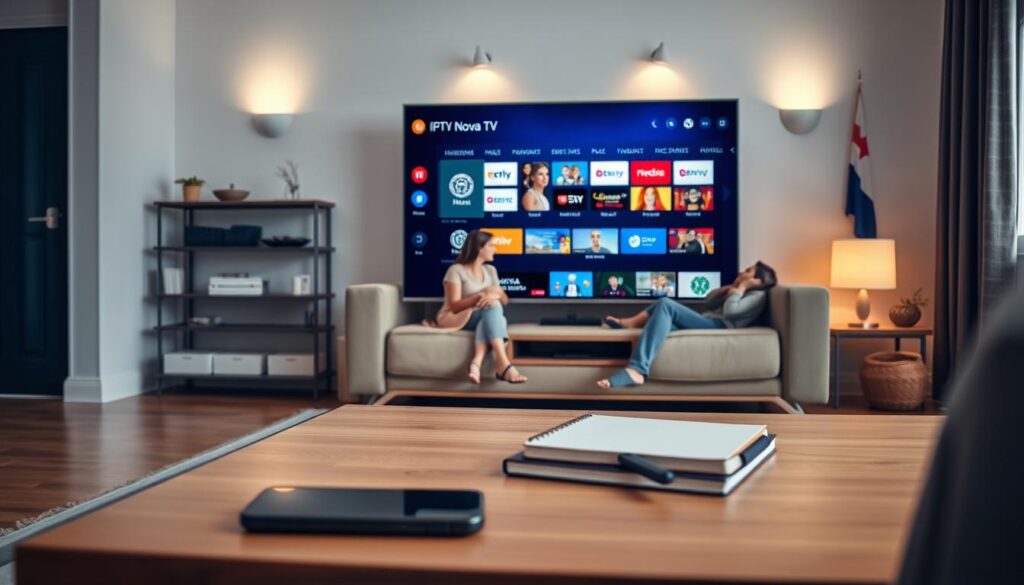
IPTV is a way to watch TV over the internet, not by satellite or cable. It offers live channels, movies, series, catch-up TV, and DVR features. Simply put, IPTV lets you watch TV on your home network with common players.
Nova IPTV Croatia caters to both local and international viewers. It has Croatian channels, news, and entertainment, along with a wide VOD library. This makes it easy to find Croatian content and major European channels on one platform.
iptv nova tv features include live TV, video-on-demand, DVR, and multi-device access. It supports HD and 4K streams and works with apps like TiviMate and Smart IPTV. These features are great for families and heavy streamers.
Setting up IPTV Nova TV usually involves M3U playlist links, Xtream Codes API, or portal/MAC activation. Make sure you have your subscription details ready for new devices.
The technical requirements for IPTV depend on the quality. For HD, you need at least 25 Mbps. For 4K, 50 Mbps is recommended. Wired Ethernet is the most stable connection. A 5 GHz Wi-Fi network works for HD, but wired is better for multiple users.
Improving your IPTV experience is simple. Enable hardware decoding, keep apps and players updated, and use a fast DNS like Google DNS. These steps reduce buffering and improve channel switching.
| Feature | Benefit | Typical Setup |
|---|---|---|
| Live TV | Real-time broadcasts and sports | Xtream Codes or M3U on Smart TV app |
| Video on Demand | Movies and series library | Integrated VOD section in the app |
| DVR / Time-shift | Record or rewind live shows | Cloud DVR or local storage on compatible boxes |
| Multi-device access | Watch on TV, phone, tablet, PC | Simultaneous logins; apps for Tizen, webOS, Android TV |
| Quality & performance | HD and 4K support | 25 Mbps for HD, 50+ Mbps for 4K; Ethernet preferred |
How to set up IPTV Nova TV on Smart TVs (Samsung, LG, Sony)
This guide will help you set up IPTV Nova TV on your Smart TV. It covers supported platforms, compatible players, and easy steps. Just follow each step, choose the right player, and you’ll be watching in no time.
Supported platforms and players
Most Smart TVs run on Samsung Tizen, LG webOS, or Sony Android TV. You can use apps like Smart IPTV, Set IPTV, IBO Player, TiviMate, OTT Navigator, and IPTV Smarters Pro. Older TVs might need a USB sideload.
Samsung setup
Press Home on your remote and open Smart Hub. Search for Smart IPTV, Set IPTV, or IBO Player and install it.
Launch the app and find the MAC address on screen. On your phone or PC, go to your provider’s activation page. Enter the MAC address and your M3U URL or portal details, then activate.
Restart the app to see channels and categories. For the best experience, set buffer mode to “Preload All” if possible. Use Ethernet for 4K streams and clear the app cache monthly.
LG setup
Press Home and go to the LG Content Store. Find Smart IPTV, IBO Player, or Set IPTV and install it.
Open the app, copy the MAC address, then upload your M3U link or portal credentials at the provider’s activation portal. Restart the app to refresh the channel list.
Keep webOS updated, enable Automatic Frame Rate on 4K models, and add favorites for quick access while watching iptv nova tv LG channels.
Sony Bravia setup
Press Home, open Google Play Store, and install TiviMate, OTT Navigator, IPTV Smarters Pro, or another Android-compatible player.
In the app, add a playlist using an M3U URL or the Xtream Codes API. Enter your Nova IPTV server, username, and password to log in and enable EPG and favorites. Manual APK installation via USB is an option if an app is not listed on Google Play.
Follow on-screen prompts to complete login and sync channels for iptv nova tv Sony models.
Optimization tips for Smart TVs
Prefer Ethernet over Wi‑Fi for 4K or high-bitrate streams. If you must use wireless, choose 5 GHz for lower interference and higher throughput.
Adjust app buffer settings such as “Preload All” to reduce freezes and lag. Keep TV firmware and IPTV apps updated to ensure compatibility with Smart IPTV Nova services.
Disable power-saving modes that may throttle playback. Use Google DNS (8.8.8.8 / 8.8.4.4) to speed up content loading. If audio lags, use the TV’s audio sync tools to correct timing.
How to install and watch IPTV Nova TV on streaming devices (Firestick, Android TV boxes, TVIP)
Streaming devices make it easy to enjoy Nova IPTV channels at home. Here are simple steps for Fire TV, Android TV boxes, and TVIP. Choose the method that suits your device and skill level.
First, get your device ready. Make sure the firmware is updated. Have your portal or M3U details ready. Also, note down the MAC address on the box for activation.
Fire TV setup
- Open Settings > My Fire TV > Developer Options and enable Apps from Unknown Sources.
- Install Downloader from the Amazon Appstore to sideload APKs when needed.
- Search the store for IPTV Smarters, OTT Navigator, or compatible players and install one.
- Launch the app, enter the portal URL or Xtream Codes API (server, username, password) and test channels.
- For privacy and stable speeds on Nova IPTV Fire TV, consider a VPN on the device.
Android TV box steps
- Open Google Play and install box-friendly apps: TiviMate (Android TV edition), IPTV Smarters, or OTT Navigator.
- If an app is unavailable, use Downloader or ADB sideloading to install the APK.
- Load services with Xtream Codes API or an M3U URL and enable hardware decoding where possible.
- High-performance boxes like Nvidia Shield handle 4K and complex codecs best when running iptv nova tv Android TV box setups.
TVIP box configuration
- For modern TVIP models, go to Settings > TV, set Content source to “Web portal” and choose API Mode = MAG.
- Enter the provider portal URL, apply changes, and restart. Wait a few minutes for channels to populate.
- Older TVIP units may need OS updates or a slightly different portal URL; use the M3U-playlist option if preferred.
- Always copy the MAC address from the back of the box for activation or trial access when setting up iptv nova tv TVIP.
Performance tips for boxes
- Use Ethernet or a 5 GHz Wi‑Fi band for the best throughput; Ethernet is recommended for 4K playback.
- Set DNS to Google DNS (8.8.8.8 / 8.8.4.4) or the provider’s DNS to speed resolution and cut buffering.
- Close background apps, enable hardware decoding in player settings, and keep firmware and apps up to date.
- When using an IPTV Nova TV Firestick or iptv nova tv Android TV box, restart the device after major setting changes.
| Device | Key Steps | Best Network | Notes |
|---|---|---|---|
| Amazon Fire TV (Firestick) | Enable unknown apps, install Downloader or app from store, enter portal/Xtream | Ethernet or 5 GHz Wi‑Fi | Use VPN for privacy and to reduce ISP throttling; works well with IPTV Nova TV Firestick |
| Android TV box (Nvidia Shield, others) | Install TiviMate or IPTV Smarters, sideload APKs if needed, enable hardware decode | Ethernet preferred for 4K | Best for heavy-duty playback; recommended for iptv nova tv Android TV box setups |
| TVIP boxes (new and old) | Choose Web portal (MAG) or M3U-playlist, enter portal/M3U URL, provide MAC for activation | Ethernet or 5 GHz Wi‑Fi | Record MAC address from the case; follow provider portal specifics for iptv nova tv TVIP |
How to use IPTV Nova TV on mobile & tablet (Android and iOS)
Watching Nova IPTV on a phone or tablet is easy and flexible. First, choose a reliable player and install it. Then, log in with your provider’s details. This guide will show you the best apps, how to install them on Android and iOS, and special settings for iPhone and iPad. It also offers tips to save data and battery while streaming.

Best apps for phones and tablets
IPTV Smarters is great for watching on different devices. Android users might prefer TiviMate mobile alternatives like OTT Navigator. These apps support playlists and Xtream Codes API. Choose the app that best fits your needs and device speed for a great Nova IPTV app experience.
Installing from app stores and logging in
On Android, open Google Play Store and install your chosen player. Add a new playlist or choose Xtream Codes API. Enter the portal URL, username, and password or paste the M3U playlist URL. Save and load channels and VOD.
On iOS, open the App Store and install IPTV Smarters or another trusted player. Select the Xtream Codes or M3U option and provide the portal address, username, and password or M3U link. Save settings and start streaming on iptv nova tv iOS devices in supported resolutions.
iOS-specific settings and background playback
Grant the app permission to use mobile data in Settings > Cellular so streams play outside Wi‑Fi. Some apps permit background audio for live radio. Video background playback faces restrictions from iOS multitasking rules. Keep the Nova IPTV app updated to access picture‑in‑picture and new compatibility fixes.
Data usage and battery tips for mobile streaming
Streaming in HD or 4K uses a lot of data. Use Wi‑Fi for long sessions to avoid high bills. Lower stream resolution in app settings when on mobile networks to cut data use with iptv nova tv Android or iptv nova tv iOS.
Extend battery life by closing background apps, lowering screen brightness, and enabling power saver modes. Use headphones rather than loud device speakers to save a bit more power. These small actions keep your IPTV Nova TV mobile viewing longer and smoother.
Watching IPTV Nova TV on PC and Mac: VLC and desktop players
Using a computer makes watching IPTV Nova TV easy and flexible. You can access recordings and EPG easily. This guide will show you how to use VLC and desktop apps for a great viewing experience.
Using VLC to open M3U playlists and browse channels
First, download VLC Media Player from its official site. Install it on your Windows or macOS computer. Open VLC, then go to Media > Open Network Stream on Windows or File > Open Network on Mac.
Paste the M3U playlist URL from your Nova IPTV subscription and click Play. You can then browse channels and access VOD entries in the Playlist sidebar. For better playback on older machines, enable hardware decoding in Tools > Preferences > Input / Codecs.
Dedicated desktop IPTV apps: features, Xtream Codes support, EPG
Dedicated desktop players offer more features than VLC. Look for apps that support Xtream Codes API, M3U playlists, and EPG integration. These apps let you sort channels, schedule recordings, and set buffer sizes.
Login options include M3U URL or Xtream credentials. A Nova IPTV desktop player can simplify EPG setup and provide a built-in DVR for recording shows on a local drive.
Troubleshooting common desktop issues (codec, buffering, firewall)
If you see codec errors, enable hardware decoding in the player settings. Or, install required codec packs when using third-party players. On Windows, K-Lite Codec Pack from a trusted source often resolves missing codec problems.
For persistent buffering, switch to Ethernet, stop background downloads, or increase the player cache size. Try changing DNS to 8.8.8.8 and 8.8.4.4 to avoid routing issues that can cause stalls.
Make sure your firewall or antivirus allows the app. Add VLC or the chosen player to the allowed apps list if streams are blocked. If EPG stays empty, refresh or reload the guide in the app and re-enter login details.
| Task | Quick VLC Tip | Dedicated Player Advantage |
|---|---|---|
| Open M3U playlist | Media > Open Network (paste URL) | One-click M3U import and channel grouping |
| EPG guide | Manual XMLTV import or rely on playlist | Automatic EPG mapping with Xtream Codes support |
| DVR / Recording | Record via VLC’s Record button (basic) | Scheduled recordings, file management, time-shift |
| Playback smoothing | Enable hardware decoding in settings | Adjustable buffer, hardware accel, low-latency modes |
| Login methods | M3U URL only | M3U and Xtream Codes (server, user, pass) |
For users in Croatia, try iptv nova tv VLC on Windows for quick tests. Move to a Nova IPTV desktop player for full features. Use iptv nova tv Mac settings for macOS stability. If problems persist, verify your subscription, check URL formatting, and contact support with your system details.
Security, legality and troubleshooting for IPTV Nova TV
Before you start streaming, make sure you have the right permissions. Using authorized Nova IPTV services keeps you safe from legal issues. Always check if the provider is licensed for Croatia and avoid unverified playlists.
Keep your account details safe and use strong passwords. Sharing M3U links or Xtream Codes can be risky. Using a VPN on devices like Fire TV Stick or Android phones can add extra privacy. This helps protect your IPTV Nova TV experience from legal and technical issues.
Buffering and lag often happen because of network problems. Try using Ethernet or 5 GHz Wi‑Fi, or lower the stream quality. Also, enable hardware decoding and increase app buffer settings. If audio is out of sync, adjust the app’s audio delay setting or restart the player.
If the EPG fails or channels disappear, refresh the guide and re-enter Xtream or M3U credentials. Restarting the player can also help. For app crashes or stale playlists, clear the cache, update the app and firmware, and re-upload the playlist.
When you need help, reach out to iptv nova tv support through official channels. Give them all the details: device type, OS or firmware version, MAC address if needed, subscription username, and error screenshots. Support teams can help with activation, playlist refreshes, and troubleshooting.
Conclusion
This IPTV Nova TV conclusion wraps up the Nova IPTV Croatia guide. It highlights what matters most. IPTV Nova TV offers live TV, VOD, DVR, and multi-device streaming. You can stream on Smart TVs, streaming boxes, mobile devices, and desktop computers.
Common activation methods include M3U playlists, Xtream Codes API, and portal or MAC activation for TVIP and MAG devices. Key actionable takeaways are simple. Prepare your subscription details (M3U, Xtream, or portal), check device compatibility, and note the MAC address for box or Smart IPTV activations.
Use Ethernet or 5 GHz Wi-Fi. Aim for at least 25 Mbps for HD and 50 Mbps for reliable 4K. Enable buffer and hardware decoding where available for smoother playback.
Keep apps and firmware updated, protect account credentials, and consider a VPN for privacy. If playback issues occur, apply the quick fixes covered earlier. Contact support with your device model, MAC, and subscription details. This iptv nova tv summary is meant to guide viewers in Croatia toward a clean, consistent setup.
Next steps: pick the device you’ll set up first, gather your Nova IPTV login or M3U URL, and follow the device-specific instructions from this Nova IPTV Croatia guide. Test playback. Following these steps will help you unlock seamless streaming with IPTV Nova TV across all major devices.